

Elon University Home

Category Archives: Moodle Musings

Encourage class-wide participation with Moodle Forums

Image of Speech BubblesA Moodle forum, similar to Blackboard’s discussion boards, is an asynchronous communication activity used to discuss various course topics.  There are several types of forums and different purposes for each.

Choosing the right forum

Standard Forum is best suited for large discussions monitored by the instructor, or for social forums facilitated by students.  A standard forum may have numerous threads and require frequent monitoring to weave threads together when commenting. It is also the best forum if there are files or resources to be uploaded.

Simple Forum is best for a brief discussion on a single topic. This forum is superior to keep students focused on a narrow topic or issue since the instructor asks only one question.

Each person posts one discussion allows each student to start one discussion topic but they can still read and respond to peer postings.  An example is posting a document for peer review and feedback.

Question and Answer Forum encourages independent thinking.  Instructors post the question and students must respond before viewing responses from peers; once a response is posted students can see course responses.  This is ideal for controversial issues or topics where you want the student to take a position.

Tips for robust discussions

  • Set rules and standards for good netiquette with the first post
  • Ask questions focused on knowledge, comprehension, application, analysis, synthesis, and evaluation
  • Encourage interactions between:  instructor to student, student to content, and student to student
  • Require students to provide substantial posts backed up with class information, readings and resources
  • Set up a forum where students can post their murkiest point anonymously
  • Incorporate external websites links to maintain current discussions
  • Assign discussion groups to create a product such as:  a quiz for the class, write a response to an author, compose a critique of a reading, brainstorm a topic, create a journal article review, compare and contrast an issue, reinforce procedures or processes by asking them to relate it to daily life, or respond to a case study

Tips for summarizing forums

The standard forum is an ideal forum to assign each student in the course an opportunity to summarize daily posts at a specified time, searching for trends and common threads and tying them together in the summary.

  • Summarize the important points in the forum weekly in the news forum
  • Alternate postings by assigning students to respond every other week
  • Assign students to summarize discussion points
  • Create mind maps that show connections and relationships to use as summaries posted in the news forum

Evaluating forum responses

Here is a simple rubric developed by Middle Tennessee State University, to use as a guideline when evaluating forum responses. Click on the image below to open a PDF file of the rubric.
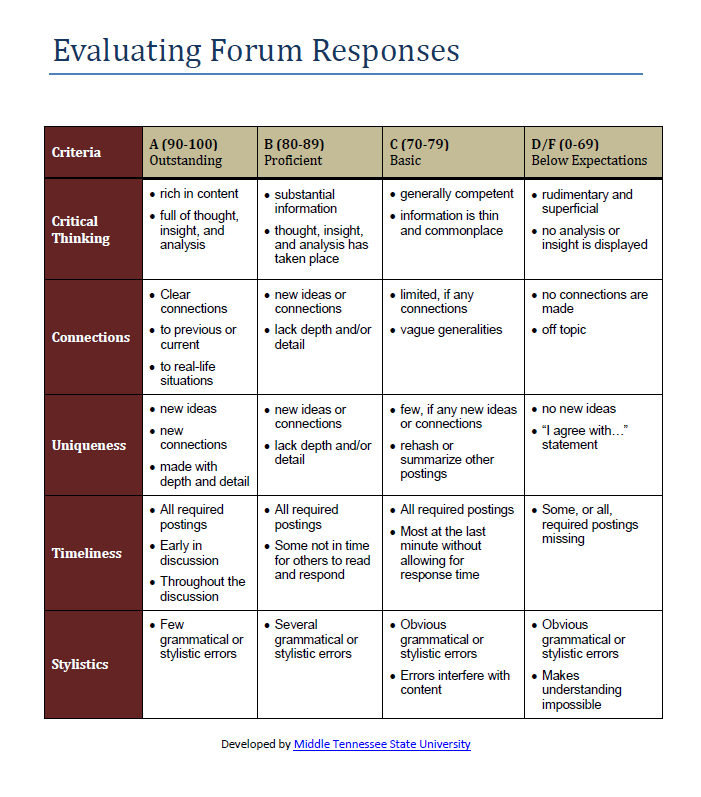
Forum Rubric for Moodle

Photo by Flickr user Marc Wathieu / Creative Commons licensed BY-NC 2.0


About the author

Cheri Crabb, PhD, Academic Technology Consultant with TLT, has a career in academia focused on instructional design and development using integrated electronic media systems for blended learning.

Also posted in collaboration, discussion, forum, Moodle, online, rubric, Teaching and Learning | Comments Off on Encourage class-wide participation with Moodle Forums

Reduce distractions and embed YouTube videos in Moodle

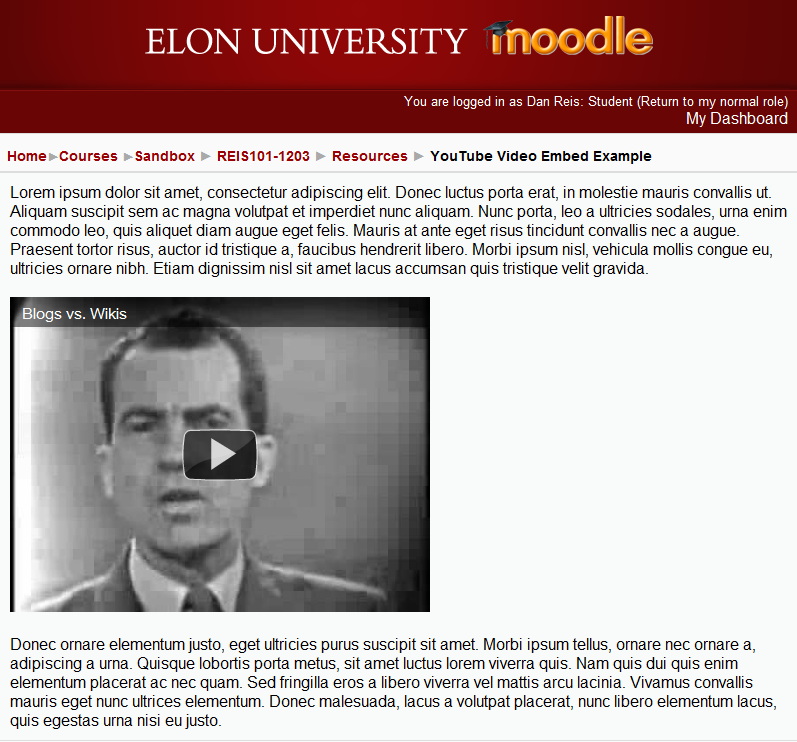
Example of video embedded in a Moodle page

Example of a YouTube video embedded in a Moodle course page

Forty-eight hours of video is uploaded to YouTube every minute (source). Among all the giggling babies and flying sloths there is great content you could use in your course. Creating a hyperlink to a YouTube video from Moodle works fine but once students are on YouTube they can get lost or distracted by the less academic videos. Embedding video so it appears inside your Moodle course page alongside other text and images is an easy way for you to seamlessly include video without the all the distractions.

The Good: Embedding video within Moodle helps reduce distractions and maintains continuity of your content in Moodle. It also avoids some of the copyright concerns with digital videos because the video is hosted on someone else’s server.

The Bad: The disadvantage to embedding is that ultimate control of the video is left to someone else. If the person who uploaded the video to YouTube decides to remove it or it is removed for copyright reasons, the video will disappear and no longer work in your Moodle course.

Ideas for use:

  • Embed a video to introduce a new topic or to relate an important concept to popular culture.
  • Embed a video as an assignment in Moodle and have students write a short reflection about the video directly into Moodle.
  • Embed a video in a forum to support your argument.
  • Embed a YouTube playlist that contains several videos on a similar theme for students who want to learn more.
  • Embed a YouTube lecture from one of the hundreds of Universities on YouTube.com/edu to supplement your instruction or activities.

What is the difference between embedding a YouTube video and uploading a video via Resources/Video in Moodle? Uploading a video requires that you have a local copy of the video. For example, if you recorded a video with your iPhone or Flip video camera, you can upload it. Otherwise, finding a video on YouTube and embedding it into your Moodle course is a great way to bring video into your class.

How-to embed a YouTube video into Moodle

The directions below are for embedding a YouTube video. It is also possible to embed videos from many other video sharing websites like: Vimeo, PBS, Ted.com, Hulu and others. Just look for an icon or text that says “embed” or “share.” However, how you paste it into Moodle will be a little different.

Summary of steps

  • Find video on YouTube
  • Copy the link to the video
  • Create a resource in Moodle
  • Paste the link into your Moodle course

Step 1: Find a video on YouTube at www.youtube.com. Tip: YouTube has thousands of academic lectures from the world’s top universities available for use at www.youtube.com/edu.


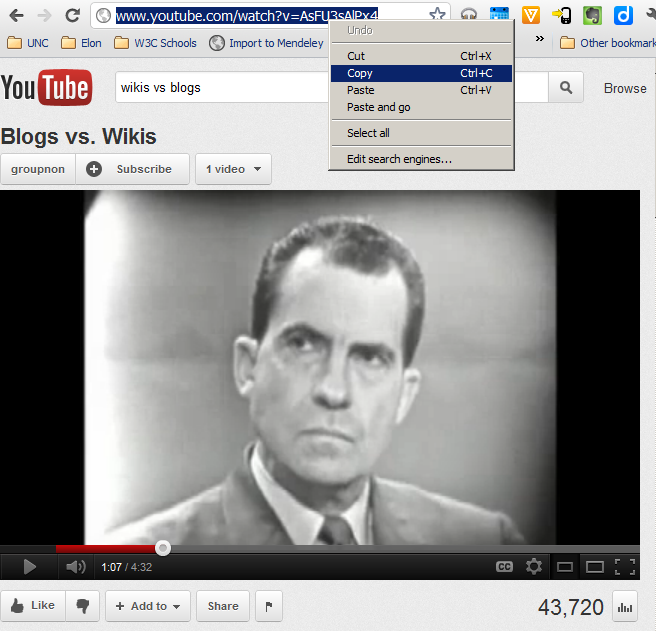
Step 2: Highlight and copy the URL for the video. You are done with YouTube.com.

Copy URL from YouTube


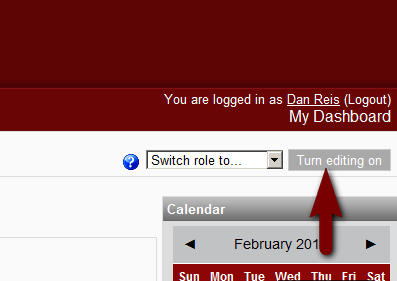
Step 3: Go to your Moodle course page and click on “Turn editing on.”

Turn editing on


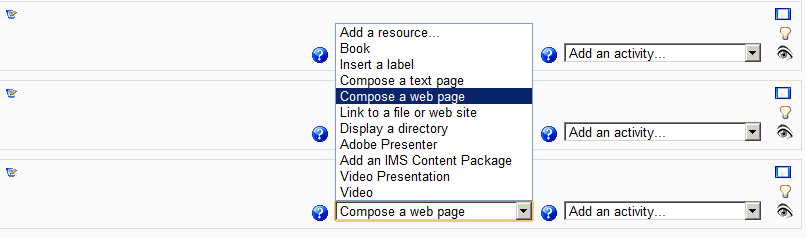
Step 4: Click on “Add a resource” and select “Compose a web page.”

Add a resource menu in Moodle


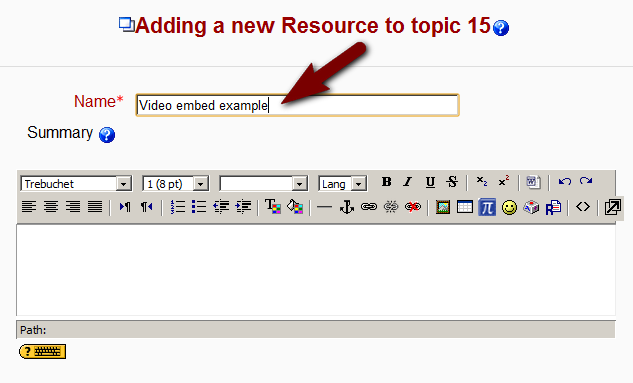
Step 5: Enter a Name for the web page/resource. You may also add text in the summary box but it is not required.

Add resource name


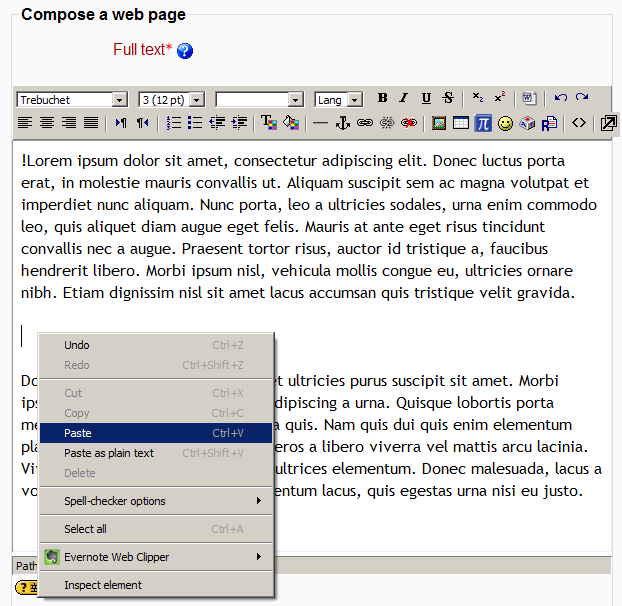
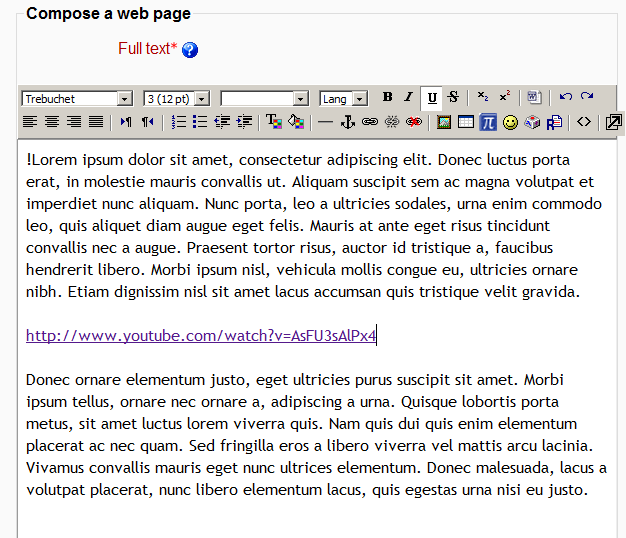
Step 6: Find the location you want to paste your video. If you have text you want to include in the web page, you can enter it in the “Compose a web page” box. Right-click (Mac: Ctrl + left click) in the text box and paste your copied URL in the text box.

Right-click to paste YouTube link


Paste YouTube link


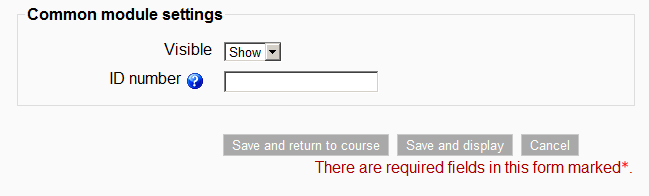
Step 7: Scroll-down and click on “Save and display.”


That’s it. Your video should appear within your Moodle course page.

Example of video embedded in a Moodle page

Example of a YouTube video embedded in a Moodle course page

View the video in the example: Blogs vs. Wikis.


About the author

Dan Reis is an Instructional Technologist with Elon University’s Teaching and Learning Technologies.

Also posted in Moodle, Teaching and Learning, video, YouTube | Comments Off on Reduce distractions and embed YouTube videos in Moodle

Gather feedback and promote deeper learning with a Moodle journal

Journal Image

Did you know that Moodle’s journal tool has lots of creative potential?

Journals are an opportunity for students to reflect on issues at a deeper and more personal level, and they provide a private means of communication between the instructor and student.  Let’s discuss several creative journal uses for your classes.

One-minute paper

One-minute papers are a quick method to acquire informal feedback from students about a lesson, assignment, test, or activity. Posing these questions in the journal area daily can provide valuable information which can be addressed at the beginning of the following class:

  • What was the murkiest point in the lesson or reading?
  • What was the most important point in the lesson, discussion, or reading?
  • What would you like to learn more about?

Reflection on content

Assigning students a reflection paper encouraging them to think specifically about the course content and real world connections, rather than self-reflection or interpretation, may promote deeper learning.

Such assignments can be effective before, during, or after class.

Before a lesson ask:

  • students to write what they know about the topic
  • how previously discussed course material may tie in with the topic

During a lesson ask:

  • students to summarize what they are learning
  • identify one area of their life that connects with the material
  • how they feel about the material at that moment

After a lesson ask:

  • specific questions about controversial or interpretive issues and to discuss their position on the topic

Brainstorming

Brainstorming can assist students in organizing their thoughts as a precursor to a final product such as a research paper.  Help students to organize their thought process and writing style by requiring them to:

  • develop a thesis statement
  • outline their research design
  • discuss their research
  • discuss their data gathering process
  • discuss their evidence

Instructors can provide detailed feedback regarding each of these individual writing chunks to assist students in becoming better writers and ultimately producing higher quality products.

Photo by Flickr user [E]mmanuel17 / Creative Commons licensed BY-NC 2.0


About the author

Cheri Crabb, PhD, Academic Technology Consultant with TLT, has a career in academia focused on instructional design and development using integrated electronic media systems for blended learning.

Also posted in feedback, journal, Moodle, Teaching and Learning | Comments Off on Gather feedback and promote deeper learning with a Moodle journal

Using Moodle for collaboration

Did you know it’s easy to create a collaborative environment in Moodle using several communication tools?

“A bird in the hand is good, but a bird in the bush might sing,” states an old Chinese proverb.  We know Moodle has collaborative tools, but how can it support student-led activities and collaboration?  In addition to forums, instructors can use wiki and chat features to facilitate collaboration.  In this post, we’ll define each and recommend ways to integrate them into courses.

Forums (known as Discussion Boards in Blackboard)

Instructors and students can communicate using Forums asynchronously. Instructors can create topics or allow students to create topics for discussion.

Ideas for using forums

  • Create a forum where students can anonymously post questions or murkiest point about course materials
  • Students debate a topic, article or reading outside of class
  • Students share responses to reflective questions and offer feedback to classmates
  • Gather questions for an upcoming guest speaker
  • Students brainstorm topics after or prior to a class

Wiki

A wiki is a webpage that allows many authors to add and edit content. Wikis are an excellent way to allow students to work together on a collaboratively-authored project.

Ideas for using wikis

  • Create a study guide where all students contribute
  • Collaboratively create a glossary of important course-related terms
  • Students ask and answer questions about a course topic
  • If you are using a new strategy or technology in your course and would like student feedback, the wiki is a great place to gather information
  • Individual or group product involving research, experiments, or interviews

Chat

Chat allows participants to have synchronous, text-based conversations with other course members. You can have different Chat rooms set up within a course; some with scheduled meeting times, and others that are always available. Chat sessions can be logged for reference, and the instructor determines who can view the logs.

Ideas for using chat

  • Hold virtual office hours where students can chat with you synchronously
  • Students can chat with each other in preparation for a team project or presentation

About the authors

Cheri Crabb, PhD, Academic Technology Consultant with TLT, has a career in academia focused on instructional design and development using integrated electronic media systems for blended learning.
Dan Reis is an Instructional Technologist with Elon University’s Teaching and Learning Technologies.
Also posted in Teaching and Learning | Comments Off on Using Moodle for collaboration

Navigating Moodle for the Blackboard user

Blackboard and Moodle are both course management systems and offer similar features. Below is a list of the most popular functions in Blackboard and how it compares to Moodle. This list is not complete but should give the most ardent Blackboard user a good place to start. Continue reading »
Also posted in Blackboard, Moodle, Teaching and Learning | Comments Off on Navigating Moodle for the Blackboard user

Designed for learning: Four reasons why Moodle is a better LMS

Did you know that Moodle will be Elon’s only Learning Management System (LMS) beginning this summer (2012)?

An old proverb states, “Teachers open the door, but you must enter by yourself.” Our switch from Blackboard to Moodle opens a door to customizing your course site.

Four reasons we think it makes a better LMS solution:

  • Designed for learning. Moodle approaches learning through sound learning theories focused on Constructivism and Connectivism. Knowledge is created and connected through consistent interaction and cooperation between and among teachers and students.
  • More ways to organize and pace content. Moodle breaks courses into topics and elements that form a structured pathway through course teaching materials. Professors select when students can see specific portions of the course and when materials are released for viewing and study. This is especially helpful in creating robust discussions, stimulating deep reflection privately or shared with peers and encouraging lively conversation through group or individual contributions.
  • More ways to share resources and connect with your students. You can distribute a course calendar, lecture slides with audio, videos, pictures, YouTube videos, links to reading materials, podcasts, RSS feeds, Twitter updates, as well as Adobe Connect course recordings.
  • Easier to use. Once the basics are learned (in about an hour), faculty have commented on how easy Moodle is to use with drop-down menus, modular blocks, clear choices, and a simple page layout.
  • During the spring 2012 term, Elon faculty members and Teaching and Learning Technologies staff persons Cheri, Ben, Roger and Dan will be sharing ideas and suggestions on how to use Moodle to enhance your courses. Do you have a feature you’d like to learn more about? Contact us at tlt@elon.edu or leave a comment at the bottom of the page.


    About the author

    Cheri Crabb, PhD, Academic Technology Consultant with TLT, has a career in academia focused on instructional design and development using integrated electronic media systems for blended learning.

    Also posted in LMS, Moodle, teaching, Teaching and Learning | Comments Off on Designed for learning: Four reasons why Moodle is a better LMS

    Navigating Moodle for the Blackboard user

    Blackboard and Moodle are both course management systems and offer similar features. Below is a list of the most popular functions in Blackboard and how it compares to Moodle. This list is not complete but should give the most ardent Blackboard user a good place to start. If there are features that you expect in Moodle but can’t find, let us know in the comments section at the bottom of the page.

    Blackboard

    Moodle

    Notes

    Control Panel

    Administration Located in left-side menu

    Make course available

    ↓ Administration 

    • → Settings
      • ↓ Availability
      • Choose Available or Not Available
  • Save changes
  • Similar to Blackboard, instructors must make their courses available for students to view.

    Edit mode is on/off

    → Turn editing on (upper right corner) To enable editing mode, click the button in the upper-right corner of the screen that says “Turn editing on.”

    Upload a document

    → Turn editing on 

    • ↓ Add a resource

    (if already in Files folder)

    • → Link to a file or website
      • → Choose or upload a file…
      • ● Under Action column, click Choose

    (if on your computer)

    • → Upload a file | Select file | Open | Upload

    ● Under Action column, click Choose

    Upload a document, PDF, image, audio, or video.* 

    *We recommend that you embed or link to video from YouTube or Vimeo with private link (viewable only to those who have the URL).

    Enroll a student

    ↓ Administration 

    • → Assign roles
      • → Student
      • ● Search and click on Name
        • + Add user (name)
    Elon users can be enrolled in a Moodle course as a teacher, non-editing teacher, student or guest. Please verify that that any student added to your course has also been officially added into Datatel by referring to class list in On-Track.

    Announcements

    News Forum Moodle uses Forum for class announcements. A Forum is created automatically at the top of your course homepage. You can rename Forum to “Announcements”. 

    News forum postings will be automatically e-mailed to the class and headers will appear in the Latest News block.

    The News Forum can be configured to send an e-mail copy of every post to the entire class. Students will be reminded of postings and are able to review previous posts.

    Send email

    → Quickmail 

    • ● Select Name(s) or Sections(s)
    • + Add (to Selected Recipients)
    • + Add attachments (if any)
    • ● Compose message
      • → Send Email
    Students may view only current messages. No message history is available via Quickmail. (They can, however, view messages in their own email accounts.) Some email from G-Mail or Forum accounts may go to Spam Folders. Advise your students to check Spam for messages.

    Assignment Tool (Digital Dropbox)

    → Turn editing on 

    • ↓ Add an activity
      • → Select Upload a single file
      • or
      • → Advanced uploading of files
      • (if multiple documents)
    Students upload their file directly to the assignment. No central dropbox is available.

    Build a quiz

    → Turn editing on 

    • ↓ Add an activity
      • → Select Quiz
    Enter parameters for the Quiz, then build questions.

    Grade book

    ↓ Administration 

    • → Grades
      • ↓ Choose an action
        • → Simple view
        • (edit categories and items)
        • or
        • → Full view

    (edit categories and items)

    Grading parameters can accommodate simple totals or weighted values, depending on your grading methods.

    Discussion boards

    → Turn editing on 

    • ↓ Add an activity
      • → Select Advanced Forum
    Advanced Forum offers several forum modes that can be assigned to individual topics.

    Blog

    Not recommended A limited blogging function is available for individuals and can be shared with the entire class.A more robust course blog solution is available. Contact TLT at tlt@elon.edu or ext. 5006.

    Journal

    → Turn editing on 

    • ↓ Add an activity
      • → Select Journal
    A journal is a one-time, long form text entry between the instructor and a student (no one else may comment or add entries). Journals can be graded and faculty have the option to leave feedback. Journals may be made visible or private.

    Wiki

    • → Turn editing on
      • ↓ Add an activity
        • → Select Wiki
    Like Wikipedia, wikis are collaborative spaces where multiple contributors can add to and edit content on the page. Moodle does not allow wikis to be graded.

    Create new course shell

    Several weeks prior to the beginning of a term, course shells will be generated. If you don’t see your course listed, call the Helpdesk at 5200.

    Copy a course

    Go to your new course shell. 

    • ↓ Administration
      • → Import

    Select originating course from:

    • → Courses I have taught
    • or
    • → Courses in the same category
    • or
    • → Search courses

    ☑ Select originating course

    ☑ Select All / None / or individual items to be imported

    • → Continue (to verify selections)
      • → Continue (outline of contents)
        • → Continue (to execute import)
          • → Continue (go to new course)
    Start in your new course shell, then import from old course.New course must have the same number of visible sections (topics) as the old course. 

    These instructions will copy all course content (files, forums, etc.), but will NOT copy enrollments or any student data (forum posts, submitted assignments, etc.).

    This may take a while, depending of number and size of files in your original course.

    About the authors

    Ben McFadyenBen McFayden is an Academic Technology Consultant with Elon University’s Teaching and Learning Technologies. Dan Reis is an Instructional Technologist with Elon University’s Teaching and Learning Technologies.
    Also posted in Blackboard, Moodle | Comments Off on Navigating Moodle for the Blackboard user

    Categories